whatsapp api · whatsapp business api · whatsapp marketing · template approval · customer engagement · bizmitra solutions
10 Best Practices for Creating High-Converting WhatsApp API Templates in 2026
10 Best Practices for Creating High-Converting WhatsApp API Templates in 2026
WhatsApp Business API lets you send proactive messages to customers — but only with pre-approved templates. Meta reviews every template to protect users from spam.
Get the template right = instant approvals, higher open rates, better ROI.
Get it wrong = rejections, delays, and blocked sends.
Here are 10 best practices we use at BizMitra Solutions to create templates that get approved in <24 hours and actually convert.
10 Best Practices for WhatsApp API Templates
1. Pick the Right Category First
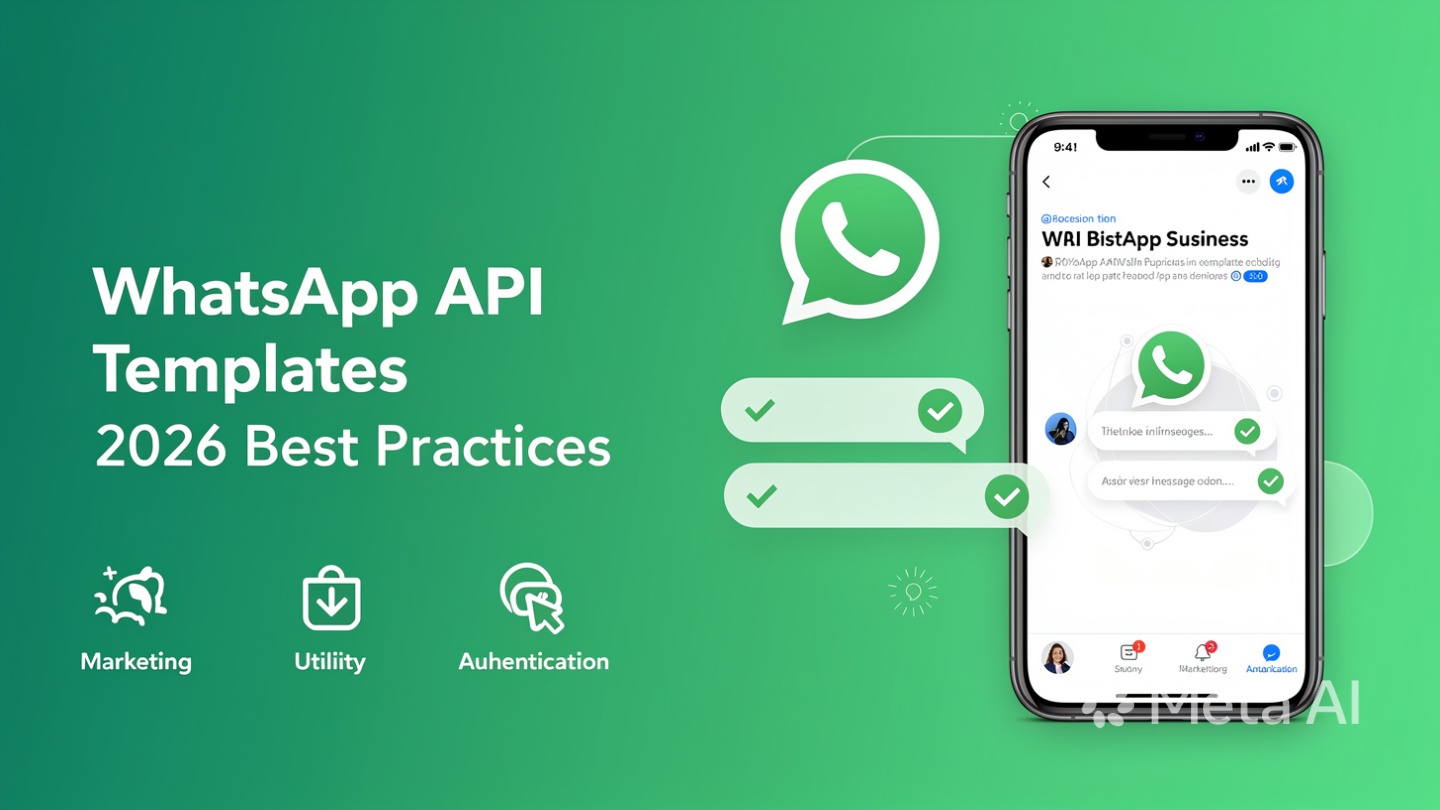
WhatsApp has 3 categories: Marketing, Utility, Authentication.
- Marketing: Promos, new launches, upsells. 24-hour window rules apply.
- Utility: Order updates, reminders, account alerts. Higher delivery priority.
- Authentication: OTPs and login codes.
Pro tip: If a message has any promotional content, choose Marketing. Mis-categorization is the #1 reason for rejection.
2. Keep It Clear, Not Clever
Template reviewers and customers both prefer direct language. Avoid slang, clickbait, or vague claims like “You won’t believe this deal!”
Bad: Hey! Guess what?? 👀
Good: Your order #{{1}} is confirmed and will ship today.
3. Use Variables for Personalization, Not for Hiding Info
Variables {{1}}, {{2}} should only replace names, dates, order IDs, amounts. You cannot use variables to hide policy-violating content.
Bad: Get {{1}} now where {{1}} = “50% OFF ALL ITEMS”
Good: Hi {{1}}, your {{2}} appointment is on {{3}} at {{4}}.
4. Add Value in the First Line
WhatsApp shows ~60 characters in the notification preview. Put the hook first.
Example: “Order Shipped: Your order {{1}} is on the way” beats “Hello {{1}}, we have an update regarding your recent purchase...”
5. Include a Strong CTA Button
Interactive buttons boost CTR by 3x vs plain text. Use:
- Call to Action: Visit Website, Call Us
- Quick Reply: Yes/No, Track Order, Shop Now
Note: Button text must match the template purpose. No “Click here” for Marketing if it’s actually Utility.
6. Follow WhatsApp’s Formatting & Character Rules
- Body: Max 1024 characters. Shorter = better performance.
- Header: Text max 60 chars. Media headers supported for Marketing/Utility.
- Footer: Max 60 chars. Keep it for T&Cs or unsubscribe text.
- Emojis: Max 1-2. More can trigger spam flags.
7. Add Opt-Out Language for Marketing Templates
Meta requires a way to opt out. Add it in the footer or body.
Example footer: Reply STOP to opt out
Without this, Marketing templates are often rejected.
8. Localize & Time It Right
If you operate in India, add Hindi + regional language templates. Also respect user timezone. Sending at 2 AM IST = high block rates.
9. Test Before You Scale
Send the template to 10-20 internal numbers first. Check for: broken variables, line breaks on Android/iOS, button rendering. Fix, then submit.
10. Name Templates for Your Team, Not WhatsApp
Template name isn’t customer-facing. Use: order_shipped_v3_en not template_abc. Helps you manage 100+ templates later.
High-Converting Template Examples You Can Copy
Example 1: Utility Template – Order Shipped [High Approval Rate]
Category: Utility
Name: order_shipped_v2_en
Header: 📦 Your Order Has Shipped
Body: Hi {{1}}, great news! Your order #{{2}} from BizMitra Solutions is on the way. Expected delivery: {{3}}. Track it anytime below.
Footer: Questions? We’re here to help.
Buttons: URL: Track Order → https://bizmitrasolutions.com/track?={{2}}
Variables: {{1}} = Customer Name, {{2}} = Order ID, {{3}} = ETA Date
Why it works: Clear purpose, no promo content, specific variables, instant value, opt-out not required for Utility.
Example 2: Marketing Template – Abandoned Cart Recovery [3.8x ROI]
Category: Marketing
Name: abandoned_cart_reminder_24h
Header: You left something behind 🛒
Body: Hi {{1}}, your cart is saved! Complete your purchase for {{2}} and get 10% OFF. Use code: {{3}}. Offer ends {{4}}.
Footer: Reply STOP to opt out
Buttons: Quick Reply: Shop Now | Quick Reply: Need Help
Variables: {{1}} = Name, {{2}} = Product Name, {{3}} = Code, {{4}} = Expiry Date
Why it works: Solves a real problem, time-bound offer, clear CTA, compliant opt-out, under 200 chars.
Common Reasons Templates Get Rejected
1. Too promotional in Utility – “Big Sale!” belongs in Marketing.
2. Open-ended variables – Variable can’t change the message intent.
3. Asking for sensitive data – No asking for card PINs, passwords.
4. URL shorteners – Use full branded domains only.
5. Grammar/formatting errors – Extra spaces before variables = rejection.
Quick Checklist Before You Hit Submit
- Correct category selected
- All variables have sample content added
- Opt-out included if Marketing
- No spelling errors or extra {{spaces}}
- CTA button matches message intent
- Tested on 1 Android + 1 iOS device
Need Help With Approvals?
At BizMitra Solutions, we manage 500+ WhatsApp API templates for D2C, BFSI, and healthcare brands. Our average approval time: 6 hours.
Talk to our WhatsApp API experts → Contact Us: https://www.bizmitrasolutions.com/contact